
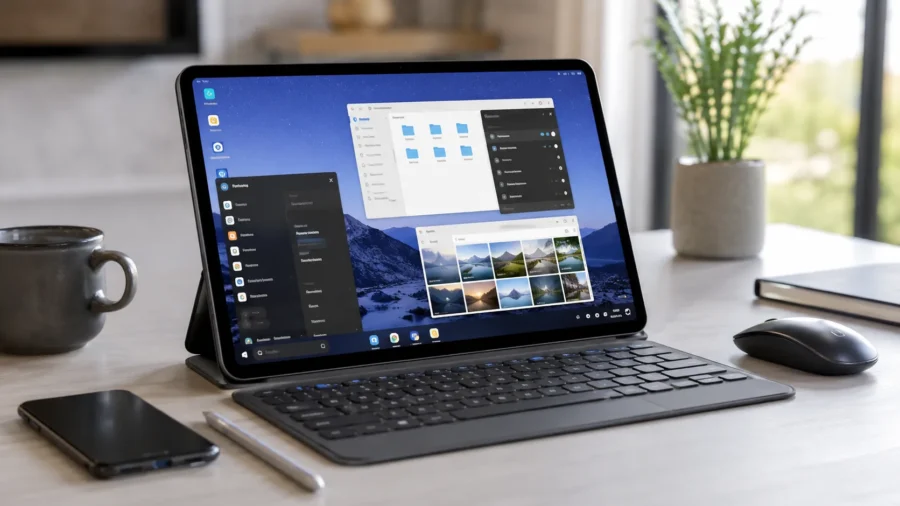
Android phones and tablets are no longer just used for consuming content. Thanks to the keyboard, mouse, multi-window support and powerful processors, many Android devices can become laptop alternatives for basic work. However, there is a major problem here: Even if the hardware is sufficient, the interface can often still feel like a phone enlarged to a big screen. This is where custom launchers come into play. Applications such as HyperDroid PC Launcher can give Android devices a Windows 11-like desktop appearance, offering a taskbar, start menu, desktop icons and a window-like application layout.
Is it possible to use an Android device like a desktop? Yes, this experience can be quite useful, especially on large-screen Android tablets. Android already has productivity features like multi-window, split-screen, external keyboard and mouse support. However, the stock Android interface does not always feel like a computer. HyperDroid PC Launcher does not change the operating system of the device. So you don’t install Windows instead of Android.
The application replaces the default home screen and offers a desktop environment similar to Windows 11. In this way, when the device is turned on, you see a layout with taskbar, start menu and desktop icons instead of the classic Android home screen. What is HyperDroid PC Launcher? HyperDroid PC Launcher is a launcher application developed for Android phones and tablets. The app transforms the Android interface into a desktop layout similar to Windows 11.
It offers a taskbar, start menu, file explorer, system tray, desktop shortcuts and a window-like application experience. This structure is especially meaningful on tablets. Because the wide screen makes using the desktop layout more comfortable. It also works on the phone, but icons, texts and menus may seem more cramped on a small screen. How to install a desktop interface on an Android phone or tablet? You do not need to do a complicated process to install HyperDroid PC Launcher.
The application can be downloaded from the Google Play Store and can be made the default launcher with a few settings. Open Google Play Store and search for “HyperDroid PC Launcher”. Download and install the application. Open the app for the first time and grant the necessary permissions. If you are installing the application on the tablet and want it to be installed automatically at startup: Go to the “Applications” section from the Settings menu.
Open the “Default apps” or “Select default apps” section. Tap “Home screen app”. Set HyperDroid PC Launcher as the default launcher. After this process, when you return to the home screen, a Windows 11-like desktop view opens instead of Android’s classic interface. What changes with HyperDroid PC Launcher? The most striking thing about the application is that it does not only offer a visual theme. The interface creates a layout closer to desktop use.
There is a taskbar at the bottom. From here, you can access the start menu, search area, pinned applications and system tray. Information such as Wi-Fi, sound, battery and time are displayed in the system tray. When you tap this area, a control center opens with quick controls such as Wi-Fi, Bluetooth, Nearby Share, theme mode and sound settings. This makes it easier to manage basic connection and system options without entering and exiting the settings menu.
The Start menu lists installed Android applications in a grid view. There is a search bar at the top. This way, you can quickly access the application you want without getting lost in the application drawer. The recommendations section showing recently used applications also offers an experience similar to the start menu in Windows 11. What do the file explorer and desktop shortcuts do? HyperDroid PC Launcher also includes a Windows-style file explorer.
This section presents a folder-like structure such as “This PC”, documents, downloads, music, pictures and videos. Navigating device storage, opening files and accessing media content becomes more desktop-like. The application also offers the opportunity to add websites as shortcuts to the desktop. For example, you can pin YouTube, Instagram or a web application you frequently use to the desktop. This feature creates an experience close to the PWA-like usage habit on computers.
It gives better results on Android tablets. HyperDroid PC Launcher can also be used on phones, but the best experience is on tablets. On a phone screen, the desktop interface can look small and cramped. Some menus are difficult to read, icons may remain small and it may be necessary to adjust the screen scale. The situation is much different on tablets. Thanks to the large screen, the taskbar, start menu, file explorer and multitasking experience work more naturally.
When an external keyboard and mouse are connected, the Android tablet can turn into a more computer-like device for typing, managing files, using web applications and light productivity tasks. Performance and usage experience Since HyperDroid PC Launcher is a launcher that runs on Android, it does not change the system of your device. Therefore, performance largely depends on the hardware of the phone or tablet you are using.
Application transitions, taskbar usage and window-like experience can generally be smooth on mid- and high-end Android tablets. However, it is necessary to set the right expectations. This app does not turn the Android device into a real Windows computer. It offers a desktop interface, but Android applications still run in the background. Although built-in tools such as file explorer, settings and browser visually give the desktop feel, they are not as comprehensive as their real Windows counterparts.
Does it make sense for those who want to use an Android device like a computer? HyperDroid PC Launcher is a very interesting option for those who use an Android tablet for writing, surfing the internet, managing files, watching videos, using social media or light office work. The interface of the device becomes more familiar and organized, especially when used with a keyboard and mouse. On the phone side, this experience may remain more experimental.
The desktop-like interface may not always be practical due to the small screen. However, more useful results can be obtained on foldable phones or large-screen models. Conclusion: A practical solution that gives a desktop feel to an Android tablet. HyperDroid PC Launcher does not turn Android tablets into a real Windows computer, but it seriously changes the feeling of use. Thanks to the taskbar, start menu, desktop shortcuts, file explorer and quick settings, the Android tablet has a more organized and productivity-oriented structure.
It would not be right to expect it to completely replace the laptop. But if you want to make your Android tablet more useful when traveling, as a desk companion device, or for light work, such custom launchers are worth a try.



Comments
You can write your views about this story. Comments may be moderated according to site settings.