
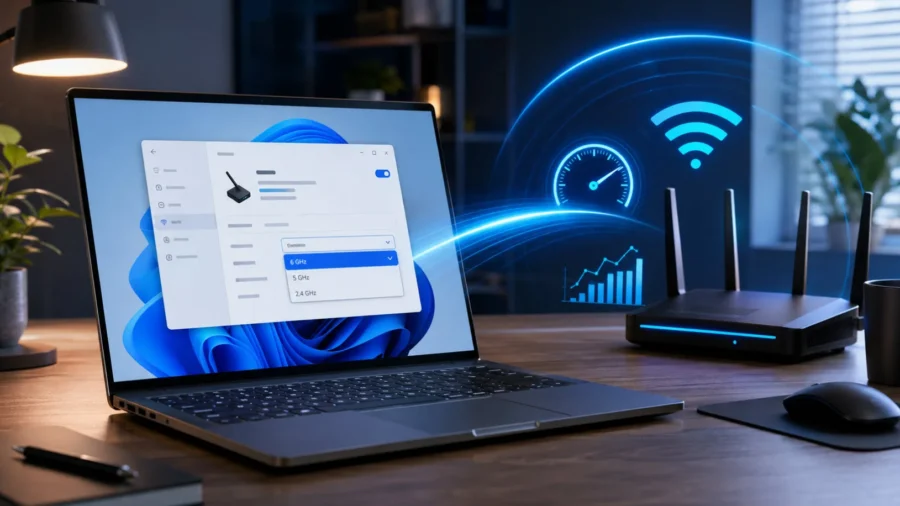
If you are not getting the wireless network speeds you expect from your Windows 11 computer even though you are using a Wi-Fi 6E or Wi-Fi 7 supported modem/router, the problem may not be in the hardware. On some systems, Windows can automatically maintain the connection via 5GHz even if the 6GHz band is available. This creates a confusing situation, especially for Wi-Fi 6E. Because Windows 11 may not always clearly show the distinction between Wi-Fi 6 and Wi-Fi 6E on the connection screen.
What you really need to look at is which band the connection is established on. Your Wi-Fi 6E connection may actually be working over 5GHz. Wi-Fi 6 and Wi-Fi 6E are technically very close standards to each other. They both work based on 802.11ax, and this is not always clearly differentiated in the Windows interface. Therefore, seeing “Wi-Fi 6” in the Settings menu does not necessarily mean that you are in the 6GHz band.
The difference of Wi-Fi 6E is that it can use the 6GHz band. Wi-Fi 6, on the other hand, is limited to 2.4GHz and 5GHz bands. So, if you see the 5GHz band in the connection features, even if your device and modem support Wi-Fi 6E, you may not be benefiting from the most important advantage of Wi-Fi 6E at that moment. This difference is especially felt in crowded network environments. 2.4GHz and 5GHz bands; It can be full of phones, televisions, smart home devices, tablets and old computers.
Since the 6GHz band is open to newer devices, it generally offers a cleaner, lower latency and more stable connection. Check these conditions first. Before changing this setting, you need to make sure that your system is actually capable of connecting to Wi-Fi 6E or Wi-Fi 7. Your computer must have a wireless network card that supports Wi-Fi 6E or Wi-Fi 7. The modem or router side must support Wi-Fi 6E or Wi-Fi 7. Network security should be set to WPA3.
Windows 11 and wireless network driver must be up to date. 6GHz network must be enabled on the router. If these conditions are met but your computer still connects to the 5GHz band, the “Preferred Band” setting in Windows may be useful. Making the 6GHz band a priority in Windows 11 This option is not included in the normal Wi-Fi settings of Windows 11. The setting is located in the wireless network adapter properties in Device Manager.
The steps you need to follow are as follows: Right-click on the Start menu. Open the Device Manager option. Expand the network adapters section. Find your wireless network card. For example, you may see Intel Wi-Fi 6E, Intel Wi-Fi 7 or a similar name. Double click on the Wi-Fi adapter. In the window that opens, switch to the Advanced tab. Find the Preferred Band option from the list. The default value usually appears as No Preference.
Change this value to Prefer 6GHz band. Click OK and close the window. Disconnect and reconnect from Wi-Fi. After this process, Windows 11 starts to prioritize the 6GHz band on available networks. On the main Wi-Fi screen, the connection may still look like “Wi-Fi 6”; Therefore, it would be better to check the band information used in the connection details. What does this setting do? The “Preferred Band” setting tells Windows which band the wireless network card should use first.
When “No Preference” is selected by default, Windows; It makes its own decision between 2.4GHz, 5GHz or 6GHz depending on signal strength, connection conditions and network configuration. Although this is sufficient for most users, it may not always give the best results for users who have invested in Wi-Fi 6E or Wi-Fi 7 hardware. Because sometimes the system may stay on the 5GHz connection instead of the wider and cleaner 6GHz band.
When “Prefer 6GHz band” is selected, the computer prefers the 6GHz band if it is available. This does not completely prevent you from connecting to 2.4GHz or 5GHz networks. It only prioritizes the 6GHz connection under suitable conditions. Why would you want to use 6GHz? The biggest advantage of the 6GHz band is that it is less crowded. Since the 2.4GHz and 5GHz bands have been used in homes and offices for a long time, a serious device density can occur in these areas.
Neighboring networks also increase this density, especially in an apartment environment. The 6GHz band offers more free space since it is specific to Wi-Fi 6E and Wi-Fi 7 devices. This can mean higher speed, lower latency and more stable connection. The difference may be more noticeable, especially for users who use a gigabit internet connection, NAS use, high-definition game streaming, cloud gaming services or wireless file transfer.
Should every user change this setting? No. If you are not using a Wi-Fi 6E or Wi-Fi 7 supported router, this setting will not be of any practical benefit to you. Likewise, if your computer’s wireless network card only supports Wi-Fi 5 or Wi-Fi 6, you cannot connect to the 6GHz band. However, if both your computer and your router support 6GHz and you always see the 5GHz band in the connection details, it makes sense to try this setting.
Especially if your speed test results are below what you expected or your local network performance seems low, the problem may be due to Windows’ band preference. Conclusion: A small but effective Windows setting for Wi-Fi 6E Wi-Fi 6E and Wi-Fi 7 hardware alone do not guarantee the highest speed. Which band Windows 11 uses also directly affects connection performance. Changing the Preferred Band setting in the Device Manager to Prefer 6GHz band can enable more consistent use of the 6GHz connection on supported systems.
If you have purchased a new generation router but your computer still does not reach the speeds you expect, it is useful to check this setting before changing the modem or looking for a driver.






Comments
You can write your views about this story. Comments may be moderated according to site settings.