
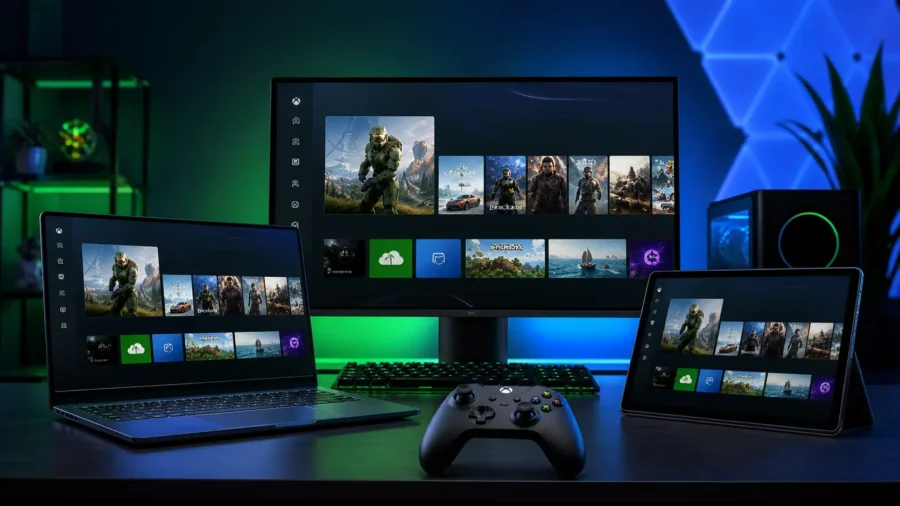
Good news for millions of players. Software giant Microsoft introduces Xbox mode, which can completely change the interface of your Windows operating system. To summarize simply, when you activate the new game feature, you are greeted with an interface similar to the one you use on Xbox consoles. What is Xbox Mode? Xbox mode aims to close the gap between Xbox consoles and Windows. You’ll be able to replace your standard Windows desktop with an Xbox-style full-screen interface designed for the controller.
The interface designed for Windows 11 players brings together installed games from Steam, Epic Games Store, Battle.net and Xbox Game Pass in a single library. If you wish, you can browse, launch and switch between games without touching the mouse or keyboard. You can also go back to the standard Windows desktop you’ve been using for years whenever you want. The feature that brings all your games together was initially available as “Full Screen Experience” only for ASUS ROG Xbox Ally handheld consoles.
The special edition became available on other handhelds via registry tweaks in September 2025. Afterwards, Microsoft officially provided support for all Windows 11-based handheld consoles. The transition to desktop and laptop computers was approved at GTC 2026 in March, with the introduction of Microsoft’s new generation Xbox console, Project Helix. In fact, many of you are familiar with Steam’s Widescreen Mode. Valve’s operating system was used by handheld console and living room PC gamers with its low system load and controller-first design.
The Xbox mode integrated into Windows 11 is similar. Full-screen interface optimized for gaming. The advantage of Xbox mode is that it provides native access to every Windows-compatible game and store without the compatibility layers required by Linux-based SteamOS. Besides quick access to games, the aim of this mode is to minimize background distractions. You can quickly access your game library and the games you have played recently.
The interface has a generally simple appearance. As we mentioned, you can switch between Xbox mode and Windows 11 desktop whenever you want. In summary, Windows 11’s gaming mode offers a good experience by allowing you to direct your PC with a controller. Of course, not everyone uses their computer from a chair in front of the screen. Xbox mode can be especially useful for gamers who have a game system in their living room and control their computer remotely.
How can I get the Xbox mode? Xbox mode was made available in certain markets on April 30, and will be available to all users over time. By the way, let us note that it can be used on desktop computers, laptops and tablets. As we said, the new feature is being gradually rolled out through Windows Update. Users who want to access this feature early need to open the settings, go to the Windows Update section and enable the “Get the latest updates as soon as they are available” option.
It looks like the Xbox mode was introduced with the optional April 2026 (KB5083631) update for Windows 11. However, it may not be directly active for every person who makes this update. In the first place, priority in distribution belongs to users in North America. Then it will be Europe’s turn. On a side note, Microsoft did not specify which markets were initially included in the rollout or provide a timeline for full global availability.
The company will also continue to improve the feature based on user feedback. How to enable Windows 11 Xbox mode? If Xbox mode has arrived on your device, all you need to do is go to the Settings page. Go to Settings by right-clicking on the Start icon. Once you enter the Gaming tab, you can enable Xbox mode (Full screen experience). Early access to Xbox mode is possible. On the other hand, you can speed up the process manually.
Xbox mode can be enabled using ViVeTool, a popular and free application on GitHub. The only prerequisite is to first install the KB5083631 update. ViVeTool allows you to enable hidden features in Windows 11. These are features that Microsoft has already integrated into its operating system but has not yet officially enabled for various reasons. After installing the latest Windows 11 optional update, codes for Xbox mode will already be available on your computer, but everything is hidden.
First, make sure you have Windows 11 KB5083631 (2026-04 Preview Update) build number 26200.8328 or higher installed by going to Settings About System. If the update is not available, press Settings Windows Update Check for updates and install the update. Go to ViVeTool’s official GitHub repository and download the latest .zip version. After downloading, extract the contents of the zip file to a location. To continue with this guide, extract the file directly to the root of your C: drive into a new folder called “ViVeTool”: C:ViVeTool.
Open the Start menu, search for Command Prompt, and run Command Prompt as an administrator. Let’s go to the folder where you extracted the tool from the Command Prompt window: type the command cd C:ViVeTool and press Enter. Next, type the following command to enable hidden Xbox mode IDs and press Enter: vivetool /enable /id:58989070,59765208 If the process is successful, a message like “Successfully set feature configuration” will appear.
After the computer restarts, go to Settings Gaming. “Xbox mode” will now be visible at the top of the menu. After clicking on the Xbox mode menu, you will see that the option to enable Xbox mode is on by default.



Comments
You can write your views about this story. Comments may be moderated according to site settings.