
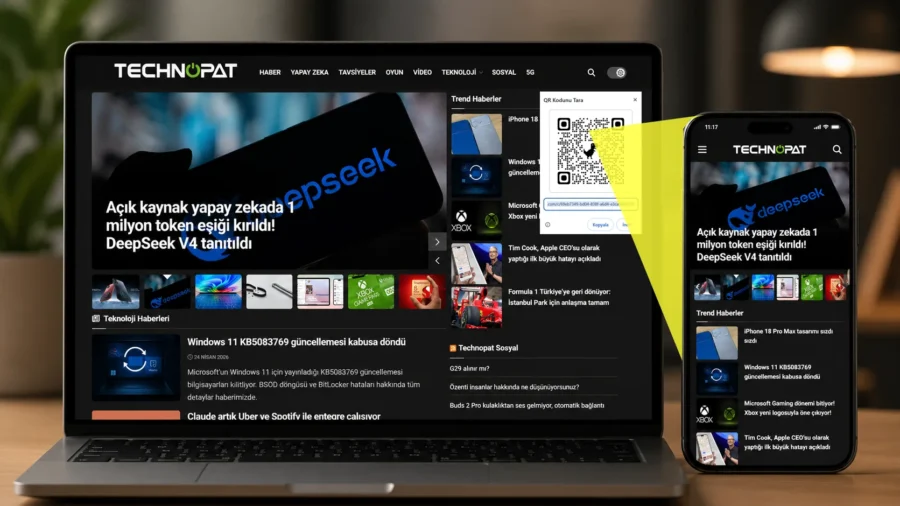
You don’t have to send the link to yourself, use a messaging app, or type the URL manually to open a web page on your phone that’s open on your computer. Thanks to Google Chrome’s built-in QR code creation feature, you can create the QR code of the open page in a few seconds and open the same page on your mobile device by scanning it with the phone camera. Summary in 10 Seconds To create a QR code for a web page open in Chrome, you can follow the three-dot menu at the top right, Publish, save and share → Create QR code.
When you scan the resulting code with the phone camera, the same page opens on the mobile device. If you want, you can download the QR code visually and use it later. You don’t have to send the link to yourself, use a messaging app, or type the URL manually to open a web page on your phone that’s open on your computer. Thanks to Google Chrome’s built-in QR code creation feature, you can create the QR code of the open page in a few seconds and open the same page on your mobile device by scanning it with the phone camera.
This feature can be used in desktop Chrome via More → Publish, save and share → Generate QR code. The created QR code can be copied, downloaded or scanned with the camera of another device. Steps to Create a QR Code in Chrome Follow these steps to create a QR code for any web page open in Chrome: Open the Google Chrome browser on your computer. Go to the web page you want to open on the phone. Click on the three-dot menu in the upper right corner.
Enter the Publish, save and share option. Select the Generate QR code option. Scan the QR code that appears on the screen with your phone’s camera. Open the page by touching the link that appears on the phone. Alternatively, in some Chrome versions, you can right-click on an empty area of the page and use the “Create QR code for this page” option. Downloading the QR Code Visually is Also Possible. The QR code created by Chrome is not only used for instant scanning.
If you want, you can also download this code visually. You can save the code to your computer with the Download option in the QR code window, and then use it in a presentation, document, poster or social media post. This feature is especially useful for opening news on the phone that you read on the computer, quickly sharing a long link, or transferring a web page to another device. Moreover, it works directly within Chrome without the need for third-party QR code sites or plug-ins.
Things to Consider Although QR codes share links practically, it is necessary to be careful in terms of security. It is important to check the address that will open when scanning QR codes whose source you do not know. Because QR codes can also be used to direct the user to harmful or imitation sites.



Comments
You can write your views about this story. Comments may be moderated according to site settings.