
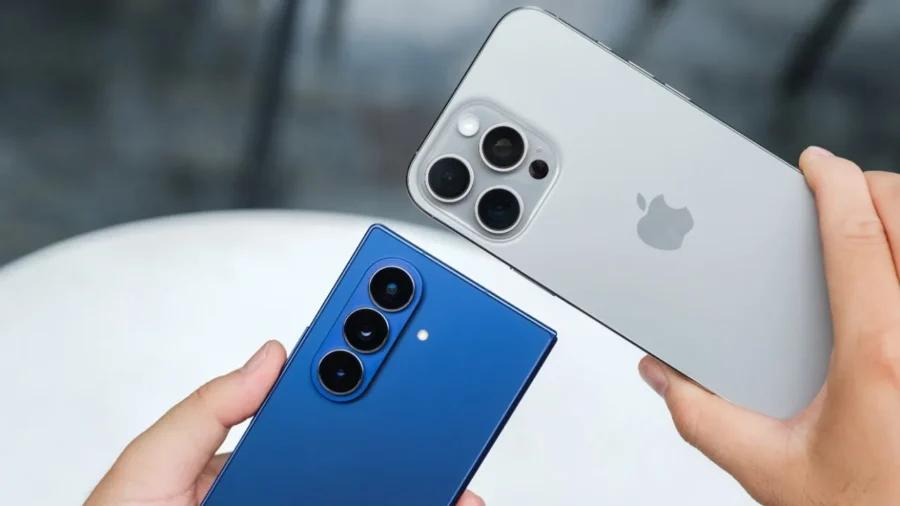
Google’s Quick Share integration has made file sharing between Samsung Galaxy phones and iPhone, iPad and Mac devices straightforward. Photos, videos and files can now be sent to Apple devices on supported Galaxy models without the need for third-party messaging applications. Likewise, iPhone, iPad and Mac users can transfer files to compatible Samsung phones via AirDrop. Using AirDrop with Quick Share on Samsung. AirDrop support on Samsung phones does not work through a separate Apple application.
The system used here is Quick Share on the Galaxy side and AirDrop on the Apple side. When the user selects a photo, video or file from his Samsung phone, he opens Quick Share from the Share menu. When the nearby iPhone, iPad, or Mac device’s AirDrop visibility is set to “Everyone for 10 Minutes,” the Apple device appears on the Samsung phone’s sharing screen. After the device is selected on the Samsung side, the transfer request from the Apple device is accepted and the file transfer begins.
This system also works in the reverse direction. When a file is to be shared via iPhone, iPad or Mac, the AirDrop screen opens. When the compatible Samsung phone is made visible via Quick Share, the Apple device shows the Galaxy model in the AirDrop list. When the user accepts the request on the Samsung phone, the file transfer is completed. Thus, the transfer between the Android and Apple ecosystems, which was previously made with third-party applications, is now carried out through the system’s own sharing infrastructure.
In order to use this feature on the Samsung side, Quick Share settings must be up-to-date. On the Galaxy device, go to the Connected devices section from the Settings menu and select Quick Share. In this section, the sharing option with Apple devices must be turned on. It is also essential that the Quick Share application and Google Play Services are up to date. Apple devices may not appear on the sharing screen on devices with old software versions.
On the Apple side, AirDrop visibility needs to be set correctly. Having AirDrop in Contacts Only mode on iPhone, iPad or Mac devices is not enough for sharing with Samsung. This integration currently works via the Everyone for 10 Minutes option. When this setting is turned on, the Apple device can receive Quick Share requests from nearby supported Android devices for a limited time. On the support side, the first phase started with the Galaxy S26 series.
Quick Share and AirDrop integration are actively used in Samsung’s current flagship family. Google’s official compatibility list also includes support for the Galaxy S25 series, Galaxy S24 series, Galaxy Z Fold7, Galaxy Z Flip7, Galaxy Z Fold6, Galaxy Z Flip6 and Galaxy Z TriFold models. In these models, the feature becomes available with One UI 8.5 and related Quick Share updates. Deployment may appear at different times depending on market, software version and device model.
Therefore, if the menu does not appear on devices such as the Galaxy S25 or Galaxy Z Fold7, it may not mean that the device is out of support. The user first needs to check for system updates and then Quick Share updates via Galaxy Store and Google Play Store. If there is no sharing option with Apple devices in the Quick Share menu, the relevant software package may not have reached the phone yet. Direct AirDrop compatible Quick Share support for Galaxy S23 series, Galaxy Z Fold5, Galaxy Z Flip5, Galaxy A series, Galaxy M series and Galaxy Tab models is not currently included in the official list.
On these devices, Quick Share’s QR code connection method can be used to share to iPhone, iPad or Mac. However, this method is not the same as a system that works directly from device to device, such as AirDrop. In the QR code method, the file is shared via the link and the receiving device downloads the content via the browser. AirDrop compatible Quick Share makes a significant difference, especially in photo and video transfer.
Users no longer have to send the file via a messaging application, lose quality, or use a cable. High-resolution photos, large video files and documents from the gallery can be transferred directly to nearby Apple devices. This structure makes daily file sharing easier for users who use a Samsung phone but work with a Mac, iPad or iPhone. For the feature to work, both devices must be close to each other. Bluetooth and Wi-Fi must be on, device screens must not be locked, and the receiving device must be visible during sharing.
Since Apple’s AirDrop visibility is temporarily opened to everyone, users must turn off this setting or wait for the time to expire after the transfer is completed. The Everyone for 10 Minutes option automatically turns off after a certain period of time. To send files to iPhone on Samsung phones, the user first selects the content they want to share from the Gallery or Files application. Then he presses the Share button and opens Quick Share.
When the Apple device’s AirDrop visibility is turned on, the device name appears on the screen. The Apple device is selected via the Samsung phone and the transfer begins with the acceptance screen appearing on the other side. For this process, both devices do not need to be connected to the same Wi-Fi network, but Wi-Fi and Bluetooth must be turned on. A similar flow is followed to send files from iPhone to Samsung phone.
Select a photo, video or file on your iPhone, open AirDrop from the Share menu and select the Galaxy device that appears in the list. When the Quick Share request on the Samsung phone is accepted, the file is transferred to the device. When the transfer is completed, it can be viewed in Gallery, Files or the relevant application, depending on the file type. This integration eliminates one of the oldest file sharing barriers between Android and iOS.
Previously, Samsung users typically used a cloud connection, messaging app, email, cable or third-party file sharing services for fast, local transfers to Apple devices. With Quick Share becoming compatible with AirDrop, this process was moved directly to the system menu. There are three points that those who want to use this feature on Samsung should check. The phone must be one of the supported Galaxy models, the device must have the current One UI and Quick Share version, and AirDrop visibility must be set to Everyone for 10 Minutes on Apple’s side.
When these conditions are met, photos, videos and files can be transferred directly between Galaxy phones and iPhone, iPad and Mac.



Comments
You can write your views about this story. Comments may be moderated according to site settings.