
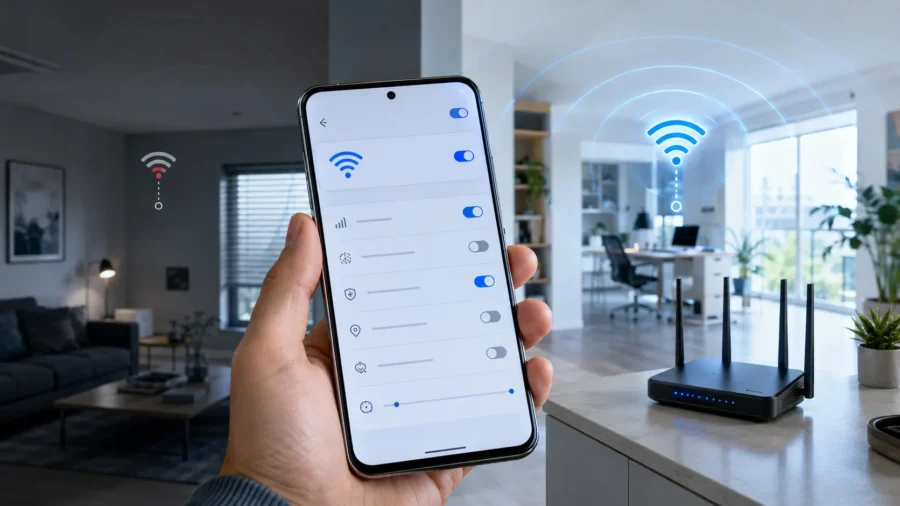
If your Samsung Galaxy phone randomly loses connection when connected to the home Wi-Fi network, suddenly switches to mobile data, or jumps to a different registered network, the problem may not always be caused by the modem. Especially in cases of connection problems experienced only on your phone, some automatic network switching features in One UI may activate unexpectedly. Summary in 10 Seconds If your Samsung phone frequently loses its Wi-Fi connection, try turning off the Switch to mobile data and Switch to better Wi-Fi networks settings in the Intelligent Wi-Fi menu.
If the problem is caused by a weak signal inside the home, you can detect Wi-Fi dead zones with the Connectivity Labs Home Wi-Fi Inspection tool. Problem: Samsung phone drops Wi-Fi connection on its own Some Galaxy users may find that their Wi-Fi connection drops frequently when their phone is on the same home network, even though other devices work fine. For example, if the tablet, computer or television remains connected to the same modem but only the phone disconnects, the first place to look may be the phone’s connection settings, not the modem.
In Samsung phones, this behavior is often caused by the automatic switching options under “Intelligent Wi-Fi”. Although these features are actually designed to reduce connection interruptions, on the contrary, they can cause more problems in some home networks. Why does Wi-Fi constantly disconnect? Two settings on Galaxy phones attract particular attention: Switch to mobile data, which can automatically switch the phone to mobile data when the Wi-Fi signal becomes weak.
Although it seems like a useful feature on paper, mobile data can be activated even in short-term signal drops at home. This may cause your mobile internet package to run out quickly without you noticing. Switch to better Wi-Fi networks allows the phone to switch to another registered Wi-Fi network. If you use more than one network at home, for example if the 2.4 GHz and 5 GHz networks have separate names or if you use different networks for different purposes, the phone can switch to the network it decides on instead of staying on the network you chose.
As a result, from the user’s side, this situation looks like “Wi-Fi is disconnecting”. In fact, the phone may not lose the connection completely; It’s just trying to switch to another connection path it thinks is better.Solution: Turn off automatic switches in Intelligent Wi-FiTo turn off these two settings on your Samsung phone, follow these steps: Open the Settings app. Enter the Connections menu. Tap Wi-Fi. Press the three dots icon in the upper right corner.
Open the Intelligent Wi-Fi menu. Turn off Switch to mobile data. Turn off Switch to better Wi-Fi networks. After this process, your phone will not immediately try to switch to mobile data or another registered Wi-Fi network when it sees a weak signal. Connection behavior becomes more predictable, especially if you consciously use a particular network at home. Mobile data consumption may also be reduced. Turning off these settings will not only reduce the feeling of Wi-Fi disconnection.
It can also prevent the phone from switching to mobile data in the background. This is an important detail, especially for those using limited mobile internet packages. While your phone may think that the Wi-Fi icon does not appear at home, it may actually be using mobile data. Therefore, it is useful for users who have connection problems to look not only at Wi-Fi stability but also at mobile data usage history. The real problem may be the weak Wi-Fi point at home.
Turning off automatic switching features can make the connection seem more stable; But this does not completely solve the signal problem at home. If your phone still has poor reception in certain rooms or some corners of the house, the problem is most likely related to Wi-Fi coverage. Samsung phones have a secret tool that comes in handy at this point: Home Wi-Fi Inspection. This tool helps analyze Wi-Fi signal quality at different points of the house.
Thus, you can see more clearly in which room the signal drops, where the connection weakens, and whether the location of the modem is sufficient. You can find out how to use it here. What should you do if you find a Wi-Fi dead zone? If you see that the signal has seriously dropped in a particular room with Home Wi-Fi Inspection, the solution may not always be to buy a new modem. You can try changing the modem or router location first.
Placing the modem in a closed cabinet, behind a television, behind thick walls or too close to the floor may weaken the signal. Moving the modem to a more central, open and high point makes a difference in most homes. In large houses or buildings with thick walls, a mesh Wi-Fi system or additional access point may be a more permanent solution. In addition, while the 2.4 GHz network offers a wider coverage area, although 5 GHz and 6 GHz networks offer higher speeds, they may be more affected by walls.
Therefore, it is necessary to strike a balance between speed and coverage area. Conclusion: The problem is not the modem, it may be the automatic decisions of the phone. Constant loss of Wi-Fi connection on Samsung Galaxy phones may not always be caused by the service provider, modem or internet line. Automatic switching to mobile data and better Wi-Fi network connection options within One UI can make the connection feel more unstable in some scenarios.
Turning off these two settings will ensure that the phone stays connected to the Wi-Fi network of your choice. Then, you can find a more permanent solution by detecting real signal problems at home with the Home Wi-Fi Inspection tool. Have you experienced Wi-Fi disconnection problems on your Samsung phone? Did turning off these settings improve connection stability? You can share your experiences in the comments. Summary in 10 seconds



Comments
You can write your views about this story. Comments may be moderated according to site settings.