
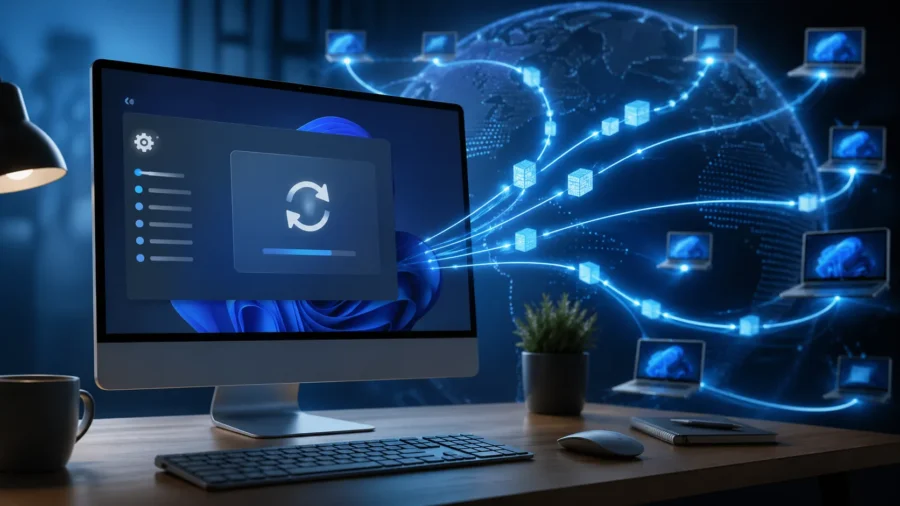
Summary in 10 Seconds: Windows’ Delivery Optimization feature can receive and share parts of update files from Microsoft servers as well as other computers on the local network or the Internet. This feature does not share personal files and works with security controls; However, it can consume internet bandwidth, upload speed and storage space in the background. Those who use limited internet, low speed or limited SSD space can turn off the feature or limit it to the local network only from the Settings Windows Update Advanced options Delivery Optimization menu.
While you’re browsing the internet, playing games, or working, your Windows PC may be doing something unexpected in the background: Sharing parts of the update files with other computers. Although it may sound strange at first glance, this situation is usually not a virus or bug. The reason is Windows’ Delivery Optimization feature. This system is designed to make Windows updates and Microsoft Store downloads faster and more efficient.
However, sending data to other devices using your computer’s internet connection can be annoying, especially for users who have limited internet packages, low speed or storage problems. What does Windows Delivery Optimization do? Normally, when you download a Windows update, your computer receives files directly from Microsoft servers. Delivery Optimization transforms this process into a peer-to-peer structure. This means that your computer may download some parts of the update files from other computers instead of Microsoft servers.
These devices may be computers on the same local network. Depending on the settings, other Windows PCs on the internet can also be included in this system. Likewise, your computer can share the update parts it downloads with other devices. Microsoft’s aim here is to speed up updates, reduce server load, and reduce data usage, especially on multiple Windows devices on the same network. For example, if there is more than one Windows computer at home or in the office, some files can be shared between devices instead of downloading the same update separately for each device.
Your personal files are not shared. The most important question at this point is: Does Windows send your personal files to others with this feature? No. Delivery Optimization does not share your documents, photos, videos or private files. The system only uses file fragments related to Windows updates and application updates downloaded from the Microsoft Store. Additionally, downloaded files are subjected to security checks.
In other words, just because the update comes piecemeal from another computer does not mean that the file is fake or modified. Windows uses these files by verifying them. The problem is on the internet and storage side rather than security. Although Delivery Optimization is technically a safe feature, it may not be ideal for everyone. In particular, sending data in the background may affect the internet experience of some users.
Delay may increase while playing games, connection quality may decrease in video calls, or fluctuations in download/upload speed may occur. This situation becomes especially evident on connections with low upload speeds. There is a similar situation on the storage side. Windows temporarily keeps update files in local cache. Although these files are cleared after a certain period of time, they can take up a significant amount of space on some systems.
For users whose storage space is already limited, even a few GB of cache can make a difference. In what cases should Delivery Optimization be turned off? It is not necessary for everyone to turn off this feature. If you have a fast internet connection, ample storage, and a powerful system, you may not notice Delivery Optimization running in the background. However, it may make sense to review the settings in the following cases: If you are using limited internet quota If you are experiencing lag problems in online games If your connection drops frequently in video meetings If the storage space on your computer is low If your upload speed is low If there is not more than one Windows device on the same network How to turn off update sharing in Windows?
A few steps in Windows settings are enough to turn off this feature. Go to Settings Windows Update Advanced options Delivery Optimization. Here you can turn off the “Allow downloads from other devices” option. When you do this, your computer will only download updates from Microsoft servers and will not send update files to other devices over the internet. There is also a more balanced option for users who do not want to turn it off completely.
You can limit same-screen sharing to only devices on the local network. This way, other Windows computers in your home or office can benefit from the updates, but no data is sent to foreign devices on the Internet. Windows also allows you to set bandwidth limits for Delivery Optimization. In this way, you can determine how much downloading and uploading can be done in the background without turning off the feature completely.
This setting may be especially useful for users who play games, watch broadcasts or frequently participate in video meetings. So Windows will continue to share updates, but it won’t be able to use your entire connection. A small tweak can make a big difference. Delivery Optimization is a sensible system from Microsoft’s perspective. It speeds up updates, reduces server load, and can save data on devices on the same network.
However, on the user side, the situation is not always this smooth. Especially for those using limited internet, low upload speed, small SSD or entry-level hardware, this feature may cause more inconvenience than benefit. That’s why checking this setting of Windows is important to understand what the computer is doing in the background. In short, it does not have to be dangerous for your computer to share updates. But it should be up to you to know how it uses your internet, storage space and system resources.
Editor’s note Although Windows’ Delivery Optimization feature is not directly dangerous in terms of security, it can create an unnoticeable load on users’ internet connection, storage space and system resources. It is especially useful for users who use quota internet, have low upload speeds or have limited SSD space to check this setting. Microsoft’s goal of distributing updates more efficiently is understandable; However, knowing and limiting how much data the computer shares in the background should be left to user preference.





Comments
You can write your views about this story. Comments may be moderated according to site settings.